Readybot is a free YouTube to Discord bot that automatically sends new YouTube videos to your server. Whenever a channel you follow uploads a new video, Readybot posts it to your chosen Discord channel within minutes. Here's how to set it up.
1. Connect your Discord server
Open the Readybot Dashboard and click "Add server" to connect the Discord server where you want YouTube notifications to appear.
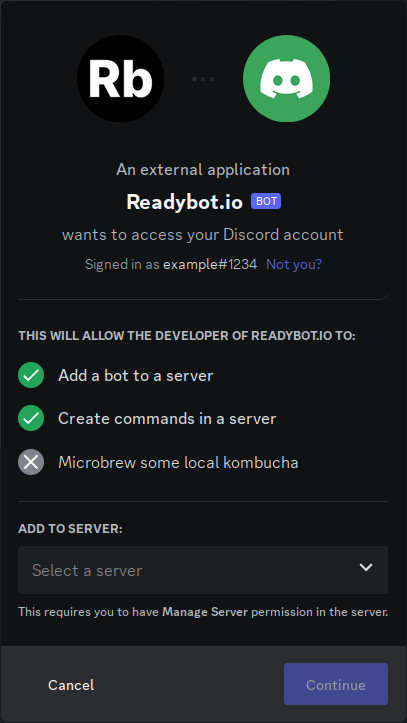
Select your server and click "Continue", then accept the permissions Readybot needs and click "Authorise".
2. Create a Feed Bot
Back on the Dashboard, click "Add bot" to create a new Feed Bot. Give it a name (e.g. "YouTube Updates") and select the default Discord channel where new video notifications will be posted.
3. Add a YouTube channel
In the Feed Bot page, click "Add feed" and paste the URL of the YouTube channel you want to follow.
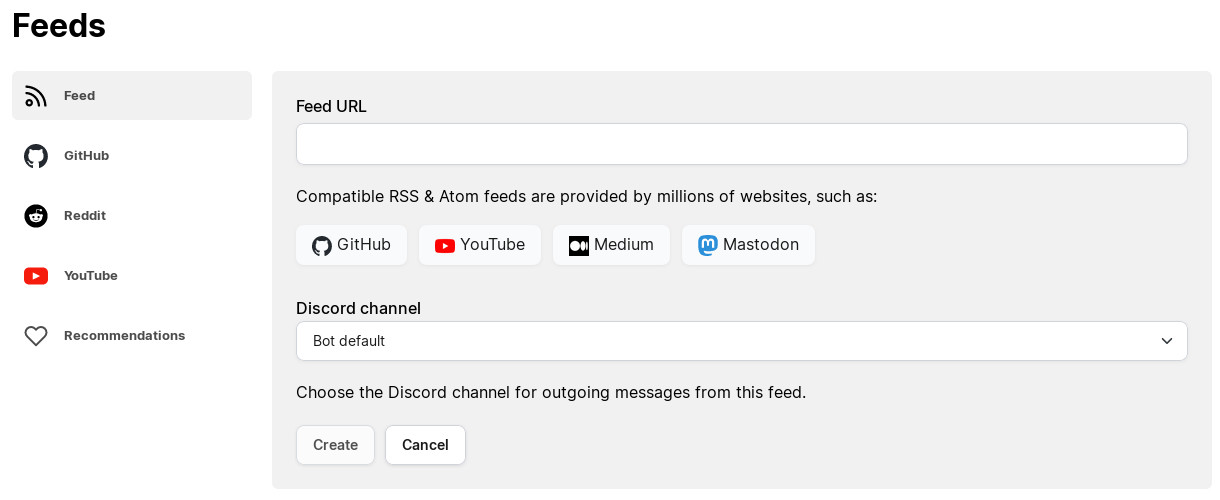
Finding a YouTube channel URL
Click the channel's name or avatar on any video page to navigate to their channel. Copy the URL from your browser's address bar. Readybot accepts all standard YouTube channel URL formats:
https://www.youtube.com/@Google
https://www.youtube.com/channel/UCxxxxxxxxxxxxxxxxxxxxxxxx
Both the @handle and /channel/ formats work. Readybot automatically detects the channel's RSS feed from either URL.
4. Wait for the first notification
Readybot checks YouTube feeds on a regular interval. The first notification typically arrives within a few minutes. New videos posted after this point will appear in your Discord channel automatically.
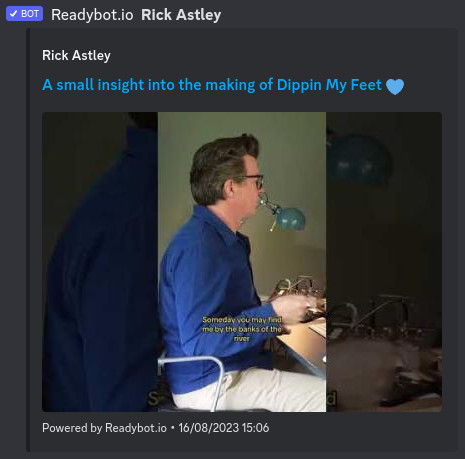
🔍 Not seeing messages? Check these common issues:
- Refresh the bot page and check the feed status for any errors.
- Make sure the Discord channel still exists and Readybot has permission to post in it.
- The channel may not have posted a new video since you added the feed. Readybot only sends notifications for new uploads.
- During busy times it can take a moment for Readybot to process all feeds.
5. Add more channels
Repeat step 3 for each YouTube channel you want to follow. You can add multiple channels to the same bot or create separate bots for different Discord channels.
Tips & advanced usage
- Separate channels by topic: Create one bot for gaming channels posting to
#gaming-videosand another for tech channels posting to#tech-news. - Filter videos by title: Use feed filters to skip videos matching certain keywords, such as "Shorts" or "Livestream".
- Custom message appearance: Customize the bot name and avatar to match your server's style.
- Faster updates: Free accounts check feeds every 10 minutes by default. Upgrade to a paid plan for checks every 5 minutes, or every minute on the Premium Membership plan.
- Mention roles: With a paid plan, you can notify users and roles whenever a new video is posted.
Readybot.io is not affiliated with or related to YouTube, Google or Alphabet Inc. Readybot does not make any guarantees to the availability of the YouTube service and feeds.